Tuesday, October 17, 2017

Selective Compression on BIG-IP

BIG-IP provides Local Traffic Policies that simplify the way in which you can manage traffic associated with a virtual server.

You can associate a BIG-IP local traffic policy to support selective compression for types of content that can benefit from compression, like HTML, XML, and CSS stylesheets. These file types can realize performance improvements, especially across slow connections, by compressing them. You can easily configure your BIG-IP system to use a simple Local Traffic Policy that selectively compresses these file types. In order to use a policy, you will want to create and configure a draft policy, publish that policy, and then associate the policy with a virtual server in BIG-IP v12.

Alright, let’s log into a BIG-IP

The first thing you’ll need to do is create a draft policy. On the main menu select Local Traffic>Policies>Policy List and then the Create or + button.

This takes us to the create policy config screen. We’ll name the policy SelectiveCompression, add a description like ‘This policy compresses file types,’ and we’ll leave the Strategy as the default of Execute First matching rule. This is so the policy uses the first rule that matches the request. Click Create Policy which saves the policy to the policies list.

When saved, the Rules search field appears but has no rules. Click Create under Rules.

This brings us to the Rules General Properties area of the policy. We’ll give this rule a name (CompressFiles) and then the first settings we need to configure are the conditions that need to match the request. Click the + button to associate file types.

We know that the files for compression are comprised of specific file types associated with a content type HTTP Header. We choose HTTP Header and select Content-Type in the Named field. Select ‘begins with’ next and type ‘text/’ for the condition and compress at the ‘response’ time. We’ll add another condition to manage CPU usage effectively. So we click CPU Usage from the list with a duration of 1 minute with a conditional operator of ‘less than or equal to’ 5 as the usage level at response time.

Next under Do the following, click the create + button to create a new action when those conditions are met. Here, we’ll enable compression at the response time. Click Save.

Now the draft policy screen appears with the General Properties and a list of rules. Here we want to click Save Draft.

Now we need to publish the draft policy and associate it with a virtual server. Select the policy and click Publish.

Next, on the main menu click Local Traffic>Virtual Servers>Virtual Server List and click the name of the virtual server you’d like to associate for the policy.

On the menu bar click Resources and for Policies click Manage.

Move SelectiveCompression to the Enabled list and click Finished.

The SelectiveCompression policy is now listed in the policies list which is now associated with the chosen virtual server. The virtual server with the SelectiveCompression Local Traffic Policy will compress the file types you specified.

Congrats! You’ve now added a local traffic policy for selective compression! You can also watch the full video demo thanks to our TechPubs team.


ps

Tuesday, October 10, 2017

Legacy Application SSO with BIG-IP and Okta

IT organizations have a simple goal: make it easy for workers to access all their work applications from any device. But that simple goal becomes complicated when new apps and old, legacy applications do not authenticate in the same way.

Today we’ll take you through BIG-IP APM’s integration with Okta, a cloud-based identity-as-a-service provider.

The primary use case for this scenario is providing the user authentication through Okta and then Okta providing BIG-IP APM a SAML assertion so that BIG-IP can perform legacy SSO using either Kerberos Constrained Delegation (KCD) or Header Authentication. BIG-IP is the Service Provider (SP) in this SAML transaction.

As we log on to a BIG-IP, you’ll see that we have two policies/application examples.

Let’s click on the Edit button under Access Policy for app1-saml-sp-okta. This takes us to the Visual Policy Editor (VPE) for the first application. As the chart flows, BIG-IP is consuming the SAML authentication, then storing the SSO credentials and doing a Variable Assign so we know who the user is.

The next entry, app3-saml-sp-okta, looks very similar.

One of the things that is different however is for Header Authentication, we’re using a Per Request Policy. You can view/configure this by going to Access Policy>Per Request Policy.

We click Edit (under Access Policy) and here via the flow, the user enters and on every request, we’re going to remove the Okta header name, which is arbitrary and doesn’t need to be that value – could be any value you choose. But we want to make sure that no one is able to pad that header into a request. So, we’ll remove it and insert the variables BIG-IP receives from Okta. This way the application can consume it and we know who that user is.

So, what does it look like.

First, we’ll log into Okta and in the portal, we see two applications – the Header Auth and Kerberos Auth.

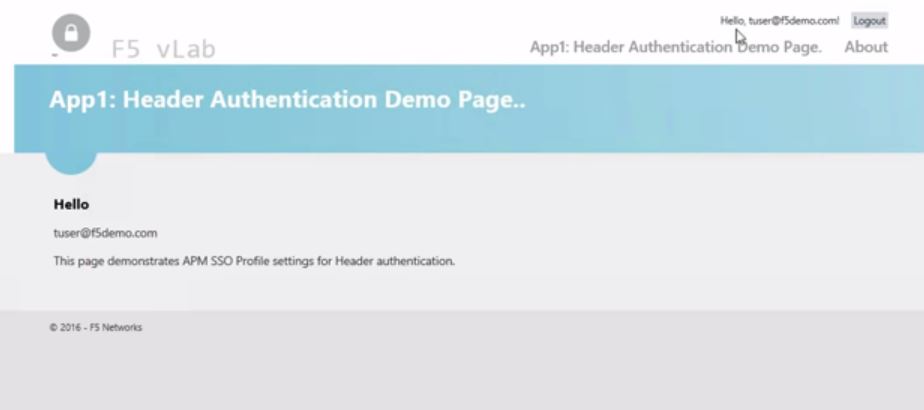
We’ll test the Header authentication first and see that we’re logged into App1 using Header authentication. Tuser@f5demo.com was the account we logged into with Okta and we see the application has been single-signed into using that credential.

Now let’s hit that Kerberos auth application. Here again, we’ve been SSO’d into the application. You may notice that the user looks a bit different here as F5DEMO\tuser since this time we used Kerberos Constrained Delegation. So, we’ve obtained a Kerberos ticket from the domain controller for F5DEMO as the user to use. So the username can look a little different but it’s mainly about formatting.


BIG-IP is able to consume that SAML assertion from Okta and then use SSO capabilities via Header or Kerberos for legacy applications. Watch Cody Green’s excellent demo of this integration.

ps

Tuesday, October 3, 2017

DevCentral’s Featured Member for October – Jad Tabbara

Jad Tabbara has been a Security Engineer with e-Xpert Solutions in Switzerland since 2014.

He graduated from INSA de Lyon FRANCE with a master degree in telecommunications and nowadays, work takes the most part of my time, but happy to succeed in his endeavors.
As hobbies, he enjoys playing sports (soccer, tennis), traveling, sharing time with family and is DevCentral’s Featured Member for October. Our second Featured Member from e-Xpert Solutions!

DevCentral: You are a very active contributor in the DevCentral community. What keeps you involved?
Jad: First, I would like to thank you for giving me this opportunity. 

I have never contributed to a forum other than DevCentral. Compared to other editors, I must admit that DevCentral is well designed such as all other F5 websites, articles and documentations. DevCentral is a great place to learn and a simple access to information regarding iRules, iControl, etc. 

As a part of my personality, I like to share my experience and help others to achieve what they are doing, this is what I found at the community and keeps me involved.
DC: You are an Engineer at e-Xpert Solutions SA. Can you describe your typical workday?
JT: There is no typical workday at e-Xpert Solutions since we always have new challenges, projects and customers. As part of my work, I implement security solutions mainly based on BIG-IP LTM, APM and ASM modules. I participate to all phases of a project (design, install & configure, maintain and troubleshoot).
DC: You have a number of F5 Certifications including Technology Specialist (LTM) certifications. Why are these important to you and how have they helped with your career?
JT: As good news, I’ve just added the 304 APM to my certification list. My objective is to get all remaining certifications before next year (BIG-IP ASM, DNS and 401). These certifications help me to learn more about BIG IP features and prove my technical skills. I believe that it’s a differentiator for me and e-Xpert Solutions. Finally, for customers, it guarantees a high level of expertise.
DC: Describe one of your biggest BIG-IP challenges and how DevCentral helped in that situation.
JT: There are many situations where DevCentral and iRules helped me a lot! Let me share with you one of the hardest issue I had to deal with. A customer was load balancing SFB solution through F5. 

An intermittent voice call interruption was occurring after 5 seconds only when tethering connection using a smartphone with a specific ISP. Thanks to DevCentral that helped me to make advanced tcpdump captures from end to end. After analysis, the problem was found. The client connected to the specific ISP used same source port for two connections (F5 and SFB). The F5 was replying using the wrong socket. Finally, to work around this weird client behavior, we changed the “Source Port Translation” option on the VS from “Preserve” to “Change”.
DC: Lastly, if you weren’t an IT admin – what would be your dream job? Or better, when you were a kid – what did you want to be when you grew up?
JT: When I was a kid, my dream was to be a soccer player. Later with the use of trendy applications such as MSN and Skype I became curious to understand how Internet world works. So, I decided to make studies in this field. During this period, I realized risks of Internet (introduced by malicious users) so I came up to specialize and work in security.

Thanks Jad! Check out all of Jad's DevCentral contributions, connect with him on LinkedIn and visit e-Xpert Solutions SA, follow on Twitter or visit LinkedIn.

Tuesday, September 26, 2017

How to Add a Data Collection Device to your BIG-IQ Cluster

Gathering and analyzing data helps organizations make intelligent decisions about their IT infrastructure. You may need a data collection device (DCD) to collect BIG-IP data so you can manage that device with BIG-IQ. BIG-IQ is a platform that manages your devices and the services they deliver. Let’s look at how to discover and add a data collection device in BIG-IQ v5.2. You can add a new data collection device to your BIG-IQ cluster so that you can start managing it using the BIG-IP device data.

In addition to Event and Alert Log data, you can view and manage statistical data for your devices. From licensing to policies, traffic to security, you’ll see it all from a single pane of glass.

But you need a DCD to do that.

So, we start by logging in to a BIG-IQ.

Then, under the System tab, go to BIG-IQ Data Collection and under that, click BIG-IQ Data Collection Devices.

The current DCD screen shows no devices in this cluster. To add a DCD, click Add.

This brings us to the DCD Properties screen. For Management Address field, we add the management IP address of the BIG-IP/DCD we want to manage. We’ll then add the Admin username and password for the device. For Data Collection IP Address, we put the transport address which is usually the internal Self-IP address of the DCD and click Add.

The process can take a little while as the BIG-IQ authenticates with the BIG-IQ DCD and adds it to the BIG-IQ configuration. But once complete, you can see the devices has been added successfully.

Now you’ll notice that the DCD has been added but there are no Services at this point. To add Services, click Add Services.

In this instance, we’re managing a BIG-IP with multiple services including Access Policies so we’re going to activate the Access services. The listener address already has the management address of the DCD populated so we’ll simply click Activate. Once activated, you can see that it is Active.

When we go back to the Data Collection Devices page, we can see that the Access Services have been added and the activation worked.

Congrats! You’ve added a Data Collection Device! You can also watch a video demo of How to Add a data collection device to your BIG-IQ cluster.


Wednesday, September 20, 2017

Lightboard Lessons: What is HTTP?

In this Lightboard Lesson, I light up some #basics about HTTP. HTTP defines the structure of messages between web components such as browser or command line clients, servers like Apache or Nginx, and proxies like the BIG-IP.


ps

Related:

Tuesday, September 12, 2017

Automatically Update your BIG-IP Pool Using the Service Discovery iApp

Let’s look at how to automatically add members to your BIG-IP pool by using the Service Discovery iApp. Whenever you deploy a BIG-IP Virtual Edition by using one of the templates on the F5 Github site, this iApp is installed on the BIG-IP.

The idea behind this iApp is you assign a tag to a virtual machine in the cloud and then BIG-IP automatically discovers it and adds it to the pool. By tagging instances in AWS and Azure, and configuring the iApp, the pool is updated based on an interval you specify. This is especially helpful if you auto-scale your application servers because they are then automatically added and removed.

Today, we’ll look how to do this in Azure but you can also do this in AWS.

First, we’re going to add a tag to the application sever in Azure. You can assign the tag to either the virtual machine or to the NIC. For auto-scaling you’d tag the scale set. This can we’ll simply add it to the virtual machine.

When you click through the virtual machine, on the left you’ll get the ‘Tags’ option.

This entry can be any name/value pair you want and for this we’ll use ‘mytag’ and ‘addme.’

And we’ll click Save.
 For this exercise, we have two application servers in the resource group and already added the tags for that one. So at this point, we’re ready to get into the BIG-IP and configure the iApp.

Once in, go to Application Services>Applications>Create.

Next, we give it a name and choose f5_service_discovery from the list.

Scroll down the same page and fill out the open fields. Under Cloud Provider, we select Azure. Depending on your provider, there are additional questions. Add the Azure resource group and the Subscription ID. The next 3 fields (for the Azure selection) are security related: Tenant ID, Client ID and Service Principal Secret. Rather than using your own credentials to create and modify resources in Azure, you can create an Azure Active Directory application and assign permissions to that. Details are included on the Github ReadMe or the Azure documentation about service Principal.

Under the Pool area, is where you enter the name/value pair that we used for the tags in Azure. We leave the rest default. In this instance, you may notice the update interval at 60 seconds. By default, 60 seconds is the interval that BIG-IP will query Azure to see if there is a resource with the tags you specified. Under Application Health, select ‘http’ as the health monitor. Click Finished.

When complete, we can see we got a pool with two active members in it.

If you take the tags off one of the instances, it’ll leave the pool. Of note however, there must be two members in the pool before you remove tags from an instance. If you remove the tags from all the application servers, the pool will not be updated. BIG-IP must see at least one set of tags to update the pool because it doesn’t want to leave you with an empty pool.

Here’s the before and after of removing a tag.

One final note. This example configuration has the BIG-IP in one resource group and the application servers in another resource group but they are all on the same Vnet. If you have separate networks in Azure, you’ll need to create a peering so they can communicate. Similarly, in AWS, you need to make sure the networking is set up so the BIG-IP can see the application servers. But, once the initial set up is working, there’s no manual intervention required.

You can use the Service Discovery method to add and remove application servers all day long without having to manually update the BIG-IP. Again, and as always, thanks to our Technical Communications team for the great material and watch the video demo here.


ps

Related: